
Mixx B20S Support
Welcome to the B20s Business Headset page, created to help you get the most out of your product quickly and easily. Here you’ll find answers to our most frequently asked questions, with a direct link to the full FAQ page for more detailed support. You can also view and download the user guide for step-by-step setup and usage instructions, as well as watch our support videos for clear, visual guidance on key features and troubleshooting. Everything you need is in one place, so you can spend less time searching for help and more time enjoying your business headset.
FAQs
My B20S Headset won't connect to the dongle
- Plug the USB dongle into your computer.
- Turn the headphones on.
- Ensure the headphones are in Wireless USB mode by double-pressing the MFB (Multi-Function Button).
- Once in Wireless USB mode, press and hold the Volume Up (+) and Volume Down (–) buttons at the same time.
- The headphones will enter pairing mode — the LED indicator will turn purple.
- The headphones will automatically connect to the dongle.
- Once connected, both devices will stop flashing and display a solid blue LED
My headset won’t turn on — what should I do?
Your headset may not have been fully charged out of the box.
- Charge the headset using the USB-C cable or charging dock
- A “Battery Low” voice prompt means only about 2 minutes of use remain
- The LED will flash red before powering off
Once fully charged, try turning the headset on again.
How do I know if my headset is charging via USB-C?
- Plug the USB-C cable into a power source and the headset
- The LED will glow red while charging
- The LED will turn off when fully charged
My headset isn’t charging on the dock — what should I check?
Make sure everything is aligned correctly.
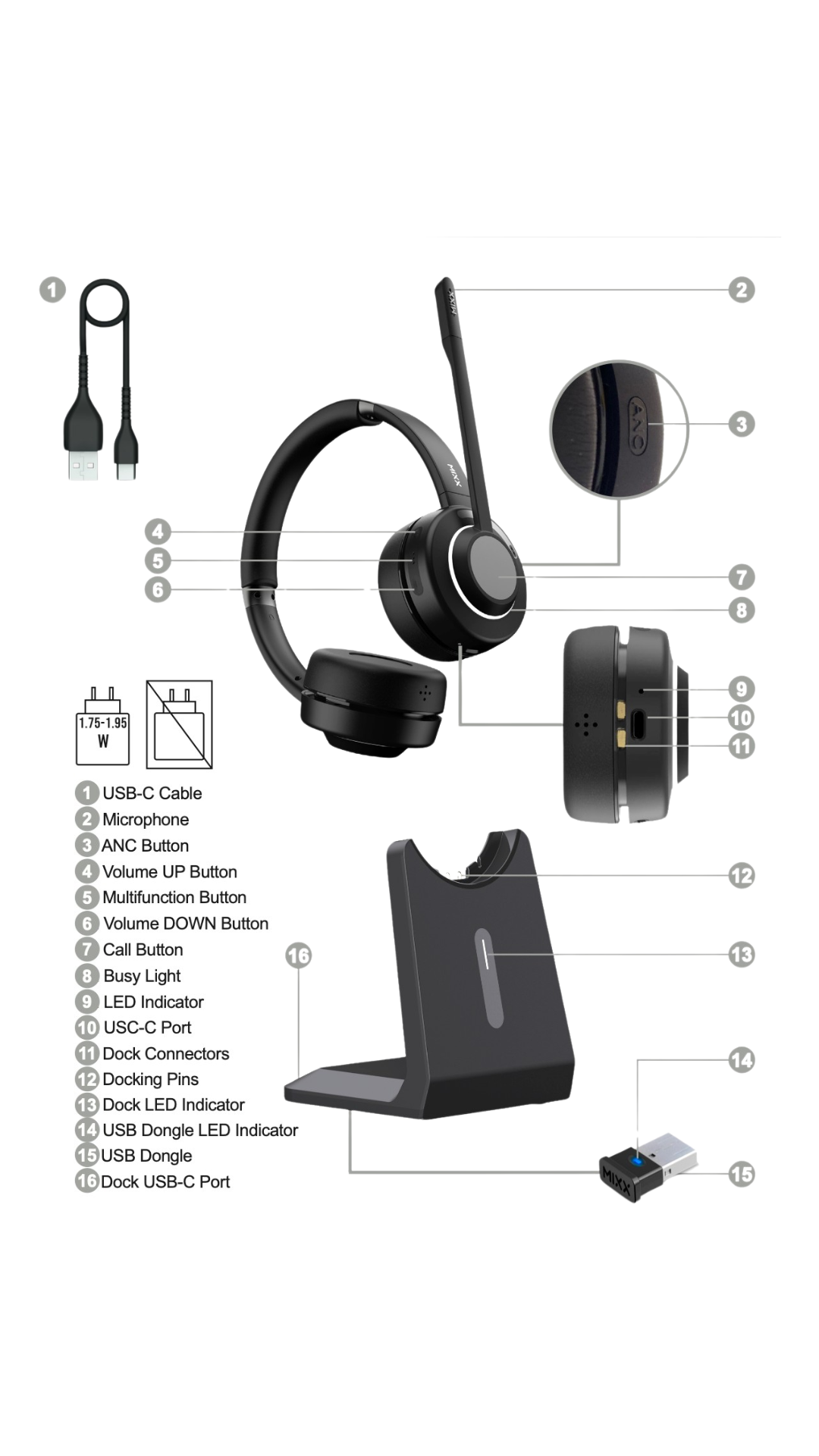
- Confirm the dock is powered (dock LED should glow white)
- Place the headset so the docking pins align with the connectors
- A flashing white dock LED means charging is in progress
- A solid white LED means fully charged
My device can’t find the headset via Bluetooth
Ensure the headset is in Bluetooth mode and pairing mode.
- Double-press the Multifunction Button to switch to Bluetooth Mode
- Press and hold the Multifunction Button until you hear “Pairing”
- The LED will flash blue and red
- Select “Mixx B20S” in your device’s Bluetooth settings
You will hear “Connected” once pairing is successful.
How do I connect the headset to two devices at once?
The headset supports Dual Connectivity.
- Pair your first device normally
- Disconnect it
- Pair the second device the same way
- Reconnect the first device
Both devices can now stay connected simultaneously.
My USB dongle connection isn’t working
Try the following steps:
- Plug the dongle into your computer (LED should flash blue)
- Turn on the headset and enter Wireless USB Mode
- The headset should connect automatically
If not, you may need to re-pair the dongle:
- Insert the dongle into your computer
- Press the dongle button (using a pen tip) for 3 seconds
- The LED will glow purple while pressed
- Remove and reconnect the dongle
- The LED will flash blue and red (ready to pair)
- Turn on the headset — it should auto-connect
I can still hear background noise — how do I use ANC?
Press the ANC button to cycle modes:
- Transparent Mode (hear surroundings)
- ANC On (noise cancelling active)
- ANC Off
A voice prompt will confirm the selected mode.
People can’t hear me on calls
Check the microphone position.
- Lower the microphone arm to activate it
- Raise the microphone arm to mute
- Ensure it is positioned close to your mouth
How do I control calls and music?
Calls
- Answer call: Press the Call Button
- End call: Press the Call Button again
Music
- Play/Pause: Press the Multifunction Button
- Next track: Press and hold Volume Up
- Previous track: Press and hold Volume Down
Volume
- Increase: Press Volume Up
- Decrease: Press Volume Down
Full FAQ List
To see our full FAQ list, click here